 Meter Max
Make a backup
-
Open Settings
Tap the gear icon (it looks like a cog) in the top right corner of the screen.
-
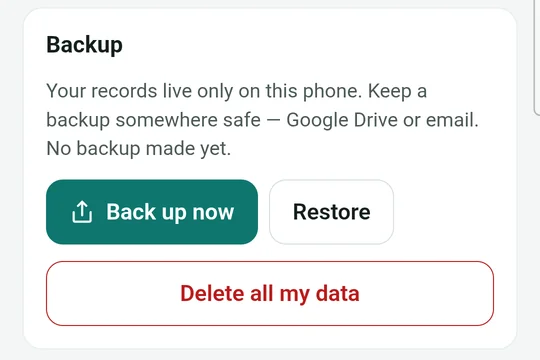
Find Backup
Slide your finger up the screen until you see the box called Backup. It's near the bottom.
-
Tap Back up now
Tap Back up now. Meter Max makes a file called something like meter-max-backup-2026-09-15.json and opens your phone's share menu.
-
Choose where to keep it
The easiest choices are:
- Drive: tap Drive, check the folder, and tap Save. It's kept in your Google account.
- Email: tap Gmail, type your own email address, and send it to yourself.
That's it. The Backup box now shows when you last made a backup.
How often should I back up?
Once a week is a good habit, for example every Sunday after you've added the week's takings. Always make one before you get a new phone, reset your phone, or delete the app.
Restore on a new phone
-
Install Meter Max
Install the app on your new phone. When it asks you to set up your books, fill in just your name and tap Start my books. The restore replaces this in a moment.
-
Open Settings › Backup
Tap the gear icon, scroll to Backup and tap Restore.
-
Pick your backup file
Your phone's file picker opens. Tap Drive (or Downloads, if you saved it from your email) and choose the newest meter-max-backup file.
Delete all your data
If you're selling or giving away your phone, or you want to start again:
-
Make a backup first
Deleting can't be undone. Keep a backup so you still have your records for HMRC.
-
Tap Delete all my data
In Settings › Backup, tap the red Delete all my data button. Type DELETE in capital letters, tap Delete everything, and unlock with your fingerprint, face or PIN to confirm.
Remember: deleting your data or the app does not cancel your subscription. See how to cancel.