 Meter Max
-
Home: your summary
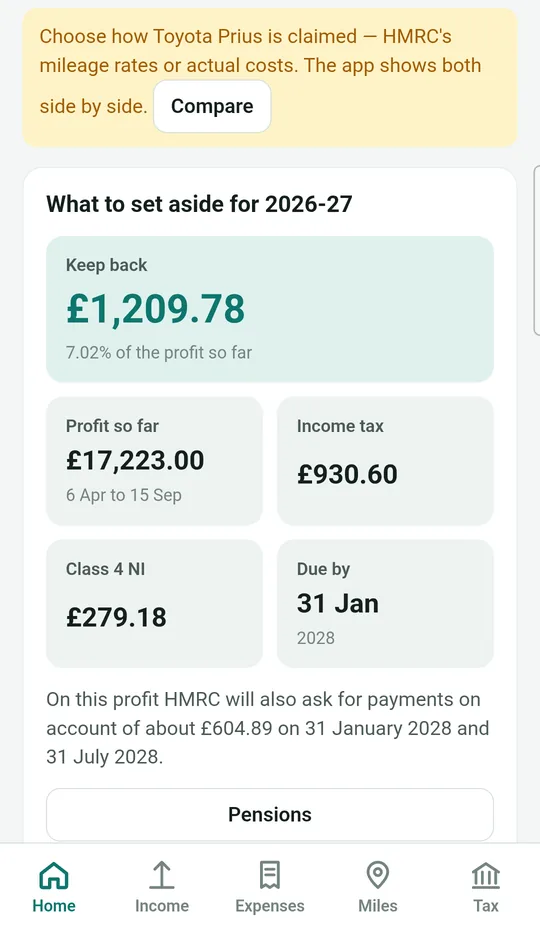
This is the first screen you see. From top to bottom:
- Three quick buttons: + Takings, + Expense and + Miles. These are the buttons you'll use most.
- Returns to send: anything you need to send to HMRC soon, marked Due or Overdue.
- What to set aside: how much to save for tax. See guide 7.
- This tax year so far: your takings, app fees, expenses and business miles.
- Vehicle and Latest entries: your car or van, and the last things you added.
-
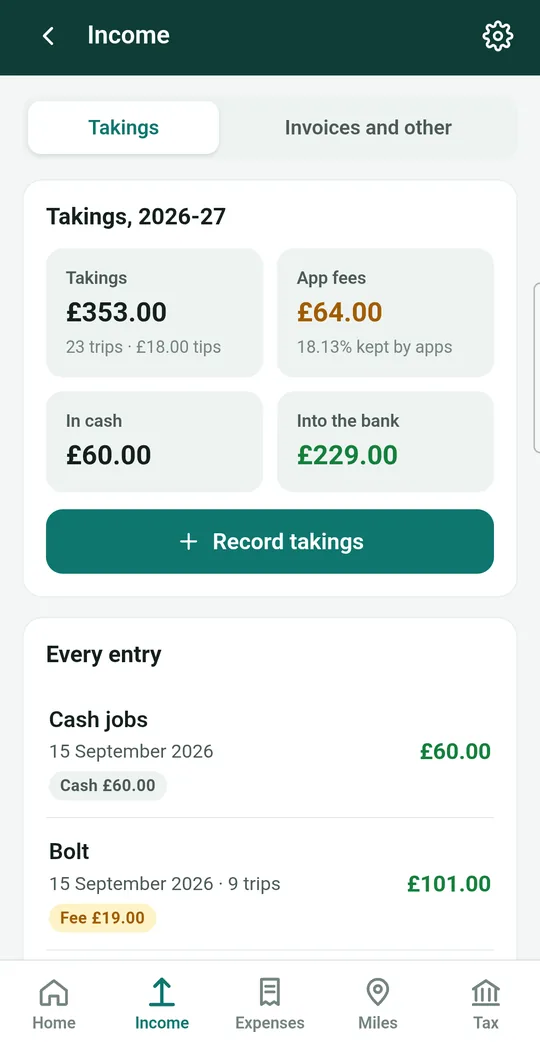
Income: money coming in
Everything you've earned. There are two parts at the top:
-
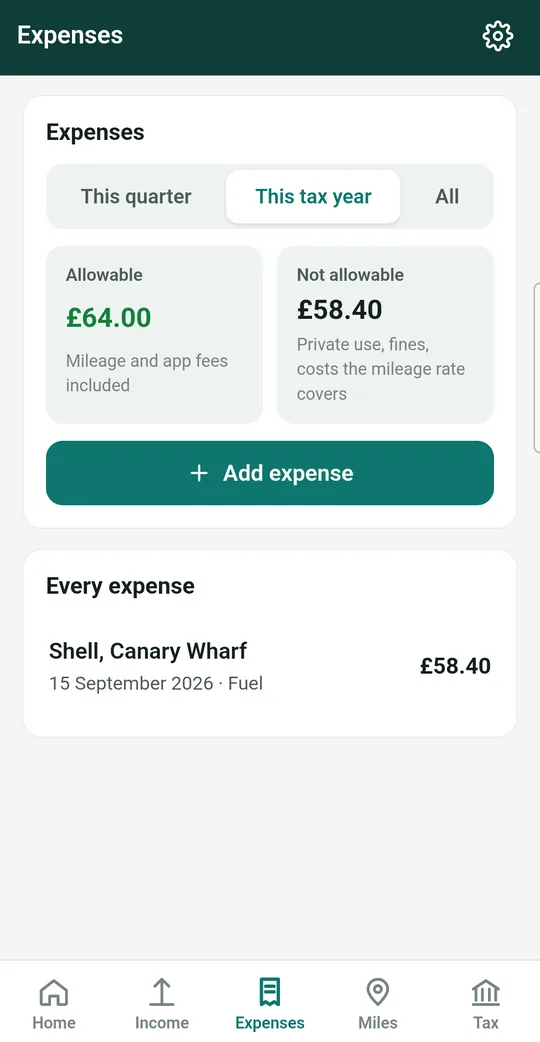
Expenses: money going out
Your business costs, like fuel, insurance and repairs, with receipt photos. It shows how much you can claim (Allowable) and how much you can't (Not allowable). Guide 4.
-
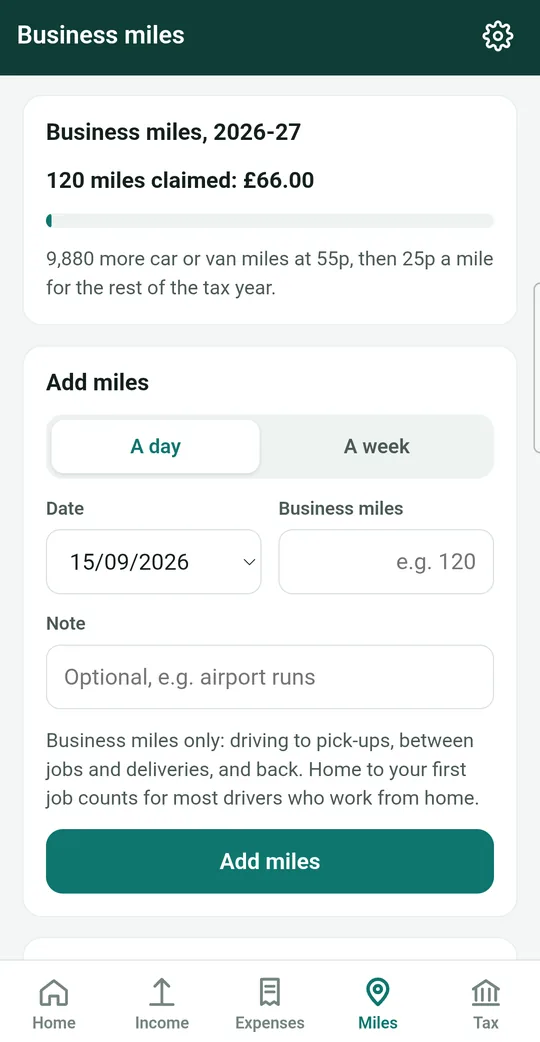
Miles: business driving
Add your business miles, see what they're worth, and choose how your vehicle is claimed. Guide 5.
-
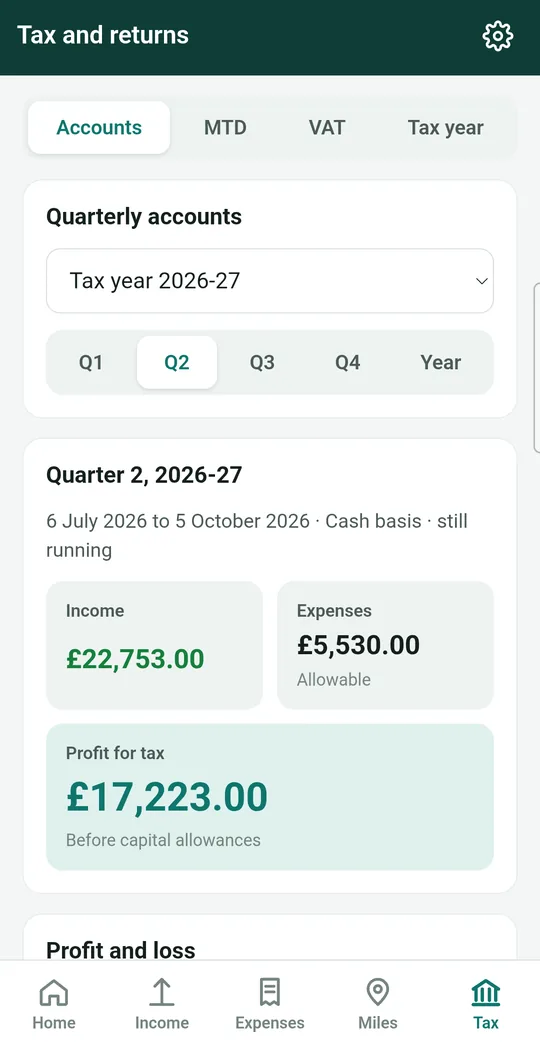
Tax: accounts and returns
Everything to do with HMRC, in four parts along the top:
- Accounts: your income, costs and profit for each quarter or the whole year, ready to share. Guide 10.
- MTD: Making Tax Digital quarterly updates. Guide 8.
- VAT: the VAT threshold, or your VAT returns if you're registered. Guide 9.
- Tax year: your full tax bill for the year, other income, and your Final Declaration.
-
Settings: the gear icon
Tap the gear icon (it looks like a cog) in the top right corner of the screen. In Settings you can:
- change your details, like your name, National Insurance number and address;
- set up VAT and Making Tax Digital;
- lock the app with your fingerprint (guide 13);
- connect to HMRC;
- manage your subscription (guide 14);
- back up and restore your records (guide 12);
- read the privacy policy and contact support.
-
Going back and closing things
- Forms, like Record takings, slide up from the bottom of the screen. To close one without saving, use your phone's Back button or gesture.
- After you save takings, the form stays open and empty, ready for the next app. Press Back when you've finished.
- On other screens, tap the arrow at the top left to go back.
- If you ever feel lost, tap Home at the bottom.
Guides › Guide 2
Finding your way around
Meter Max has five buttons along the bottom of the screen. Each one opens a different part of the app. Here's what they do.